Setup Guide
Summary
This setup guide will go through the process of building and deploying an instance of Beacon.
In this example scenario, I have a domain and a personal static website hosted at https://dananglin.example and
I want to deploy an instance of Beacon at https://auth.dananglin.example so that I can sign into client sites
with my domain using IndieAuth.
Requirements
Build requirements
The following tools are needed to build the application:
- Git: Required for cloning the repository. Please go here for instructions on how to download Git for your repository.
- Go: A minimum version of Go 1.26.1 is required for installing Beacon. Please go here to download the latest version.
- Mage (optional): The project includes mage targets for building the binary and docker image. The main advantage of using mage over just using
go buildis that the build information is built into the binary during compilation. You can visit the Mage website for instructions on how to install Mage.
Deployment requirements
- A (sub)domain that can be resolved to the IP address of your Beacon instance.
- A reverse proxy (e.g. Caddy) that can perform TLS termination with a valid certificate.
This tutorial assumes that you have both the DNS record for the domain and the reverse proxy already set up.
Build
Build the binary
Clone the repository.
git clone https://codeberg.org/dananglin/beacon.git
Build with mage
If you have mage installed you can build the binary with:
mage clean build
This will build the binary to the __build directory.
You can install the binary to one of the directories in your PATH.
You can set the following environment variables when building with Mage:
| Environment variable | Description |
|---|---|
| BEACON_BUILD_REBUILD_ALL | Set this to "1" to rebuild all packages even if they are already up-to-date.(i.e. go build -a ...) |
| BEACON_BUILD_VERBOSE | Set this to "1" to enable verbose logging when building the binary.(i.e. go build -v ...) |
| BEACON_APP_NAME | Use this variable if you want to build the binary with a different name. By default the name is set to beacon. |
Build with go
Alternatively you can build the binary with go build.
go build -a -trimpath -ldflags="-s -w" -o ./__build/beacon .
This will build the binary to the __build directory.
You can install the binary to one of the directories in your PATH.
Build the docker image
There is a mage target for building a docker image. This builds both the binary and the docker image. You can build the docker image with:
mage docker
You can set the following environment variables when building with Mage:
| Environment variable | Description |
|---|---|
| BEACON_DOCKER_IMAGE_NAME | Use this to specify the name of the docker image. |
| BEACON_DOCKERFILE | Use this to specify a different Dockerfile. By default the Dockerfile is used. |
If you don’t wish to use mage then you can build the docker image using docker build.
Ensure that you’ve built the binary before building the docker image.
docker build -t localhost/beacon:latest .
Configure
Create your configuration file
You’ll need to create a JSON file to configure your Beacon instance. You can copy the example configuration here and edit for your setup. Please refer to the configuration reference to help with your configuration.
Generate your JWT secret
You’ll need to create a JWT secret for signing JWT access tokens. This can be any random string; preferably 32 characters or more. You can use the following example command to generate the secret:
openssl rand -base64 32
Once you’ve generated the secret add it to your configuration.
Example configuration for this tutorial
{
    "bindAddress": "0.0.0.0",
    "port": 8080,
    "domain": "auth.dananglin.example",
    "gracefulShutdownTimeout": 30,
    "database": {
        "path": "./data/beacon.db"
    },
    "jwt": {
        "secret": "18ydyvTHmtdA/CMwyDGKjpm+j+oPgvnjQUO1qAkJc8w=",
        "cookieName": "beacon-5G5yyt9pfeJUUUeq"
    }
}
Deploy
Run the binary
Here’s an example script to run the binary.
mkdir -p data
beacon serve --config config.json
Run the docker image
mkdir -p data
docker run -d \
    -v ./config.json:/config.json \
    -v ./data:/data \
    -p 8080:8080 \
    --name beacon \
    --restart always \
    localhost/beacon:latest serve --config=/config.json
Once you have your Beacon instance running, ensure that your reverse proxy and DNS records are routing traffic to the IP address and port that your instance is bound to.
Setup your profile
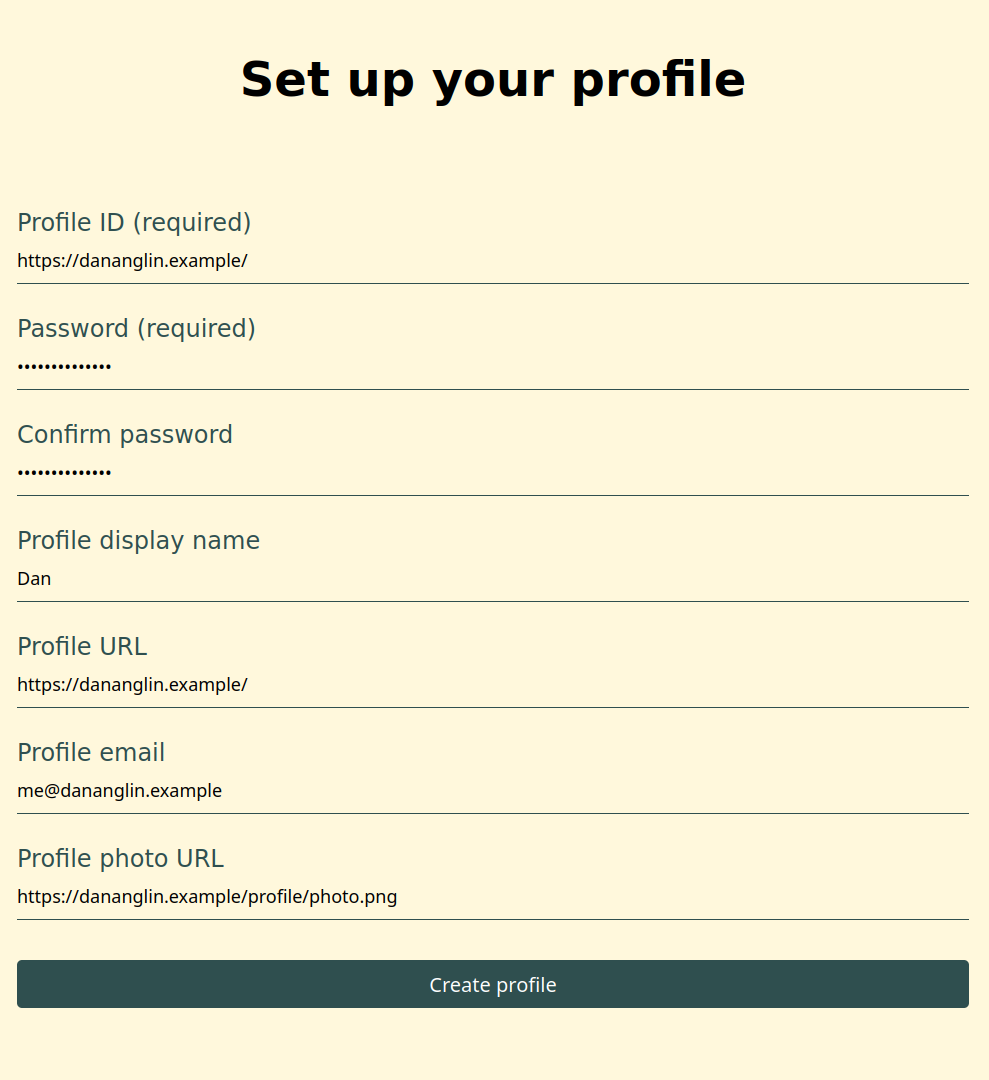
Open your favourite web browser and go to the URL of your Beacon instance. You’ll be presented with a form to set up your profile.
Profile ID and password
The Profile ID (a.k.a your Profile URL) is the URL of your domain or website.
A valid profile ID must follow the below requirements:
- It must have either the
httpsorhttpscheme. - It must contain a path component (
/is a valid path). - It may contain a query string component (e.g.
https://website.example?userID=1001). - It must not contain a fragment component.
- It must not contain a username or password component.
- It must not contain a port.
- It must not be a IPv4 or IPv6 address.
You can view the requirements in the User Profile URL section of the IndieAuth specification as well as examples of valid and invalid URLs.
Before creating your profile, Beacon validates the value of your profile ID against the above requirements and canonicalizes it before setting it as your profile ID.
For example bobsmith.example will be canonicalized to https://bobsmith.example/.
Next, enter and confirm your password.
The profile information fields
The remaining fields are for your profile information which an IndieAuth client may request to see when you sign into their service. These are not required for this setup and you can update them after you’ve created your profile.
- The
Profile display nameis the name you expect the client to use as your display name. - The
Profile URLis the URL of your website. This can be the same as your profile ID or even a URL of a different website. - The
Profile photo URLis the URL of an image that you wish the client to use as your profile image. - The
Profile emailis the email address that you wish to provide to the client if the client requests to view your email address.
See the Profile Information section of the IndieAuth specification to see more information about the profile information.
Once you have entered your details click the Create profile button.
You’ll be redirected to the login page where you can sign into Beacon.
Updating your profile
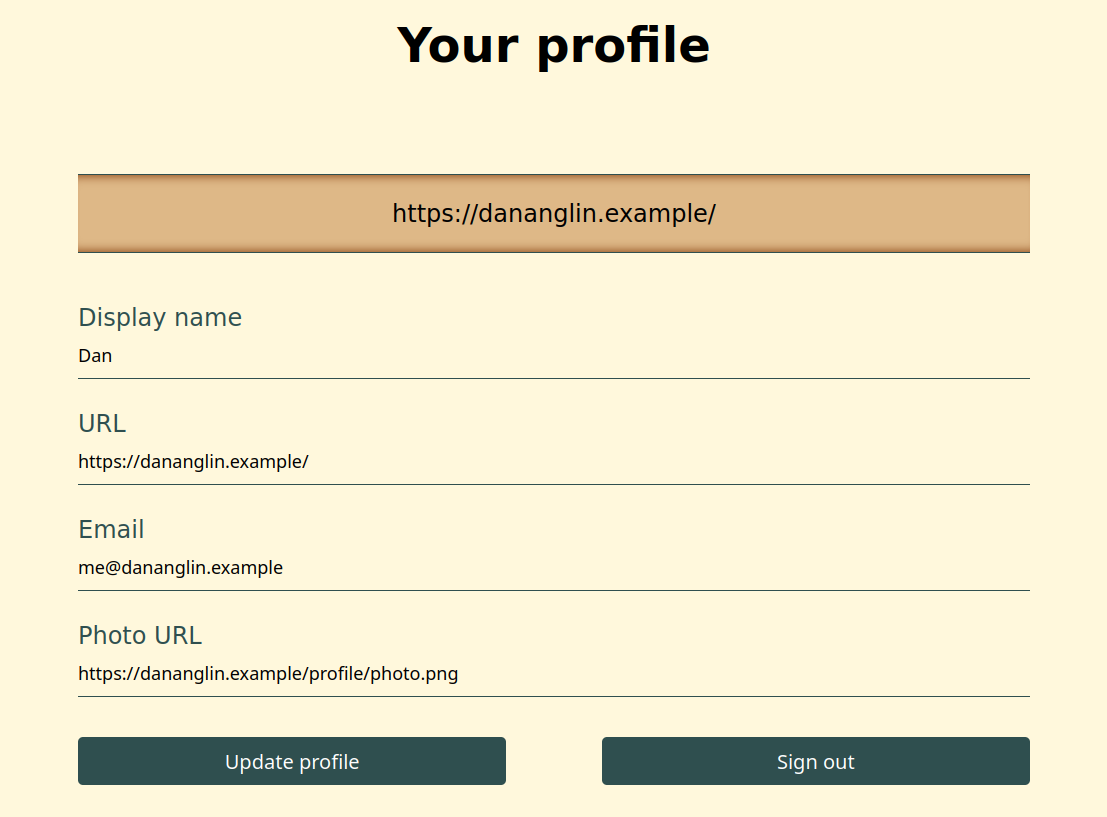
Once you’ve signed into Beacon you’ll be presented with a page with your profile information which you can update at any time.
Update your domain or website
Now that you’ve set up your profile in Beacon, you’ll need to update your website so that IndieAuth clients can
discover your instance’s authorization and token endpoint. According to the IndieAuth specification, clients
should discover these using the indieauth-metadata endpoint however older clients may instead search for the
authorization_endpoint and token_endpoint URLs in your site’s HTML document.
See the Discovery by Clients section of the specification for more information on how clients discover the endpoints.
The following sections will describe how you can update your website to configure all endpoints so that all clients are supported.
Set the indieauth-metadata HTTP header
Your instance’s indieauth-metadata endpoint can be found at https://<YOUR_BEACON_URL>/.well-known/oauth-authorization-server.
To confirm, enter the URL in your browser or HTTP client.
You should receive a JSON document that includes both the authorization and token endpoints.
curl -s https://auth.dananglin.example/.well-known/oauth-authorization-server | jq .
{
  "issuer": "https://auth.dananglin.example/",
  "authorization_endpoint": "https://auth.dananglin.example/indieauth/authorize",
  "token_endpoint": "https://auth.dananglin.example/indieauth/token",
  "service_documentation": "https://indieauth.spec.indieweb.org",
  "code_challenge_methods_supported": [
    "S256"
  ],
  "grant_types_supported": [
    "authorization_code"
  ],
  "response_types_supported": [
    "code"
  ],
  "scopes_supported": [
    "profile",
    "email"
  ],
  "authorization_response_iss_parameter_supported": true
}
Once you have confirmed the endpoint,
add a Link header to your HTTP response headers in your reverse proxy configuration or your HTTP server (if you’re running a HTTP server behind your domain).
The header should be similar to the example below.
Link: <https://auth.dananglin.example/.well-known/oauth-authorization-server>; rel="indieauth-metadata"
See here for more information on the Link header.
When fetching your site’s HTTP headers, you should see the indieauth-metadata endpoint in the response.
$ curl -I https://dananglin.example
HTTP/2 200
accept-ranges: bytes
alt-svc: h3=":443"; ma=2592000
content-type: text/html; charset=utf-8
etag: "d5vav5hxis04bz"
last-modified: Mon, 25 Nov 2024 13:39:13 GMT
link: <https://auth.dananglin.example/.well-known/oauth-authorization-server>; rel="indieauth-metadata"
server: Caddy
vary: Accept-Encoding
content-length: 431
date: Wed, 27 Nov 2024 16:36:33 GMT
Set the indieauth-metadata link tag
Alternatively to configuring the HTTP header you can specify the indieauth-metadata endpoint in a link tag in your HTML document if your site serves a HTML page.
Example:
<!DOCTYPE html>
<html>
    <head>
        <meta charset="UTF-8">
        <link rel="indieauth-metadata" href="https://auth.dananglin.example/.well-known/oauth-authorization-server">
    </head>
</html>
Set the authorization_endpoint and token_endpoint link tag
The IndieAuth specification recommends setting the authorization_endpoint and token_endpoint link tags for backwards compatibility with older clients.
Newer clients may also look for these if they are unable to find the indieauth-metadata endpoint for whatever reason.
Example:
<!DOCTYPE html>
<html>
    <head>
        <meta charset="UTF-8">
        <link rel="authorization_endpoint" href="https://auth.dananglin.example/indieauth/authorize">
        <link rel="token_endpoint" href="https://auth.dananglin.example/indieauth/token">
    </head>
</html>
Note
The recommendation for looking for the authorization endpoint and token endpoint link tags may be removed from the specification once the use of the
indieauth-metadataendpoint is widely supported.
Sign into an IndieAuth client
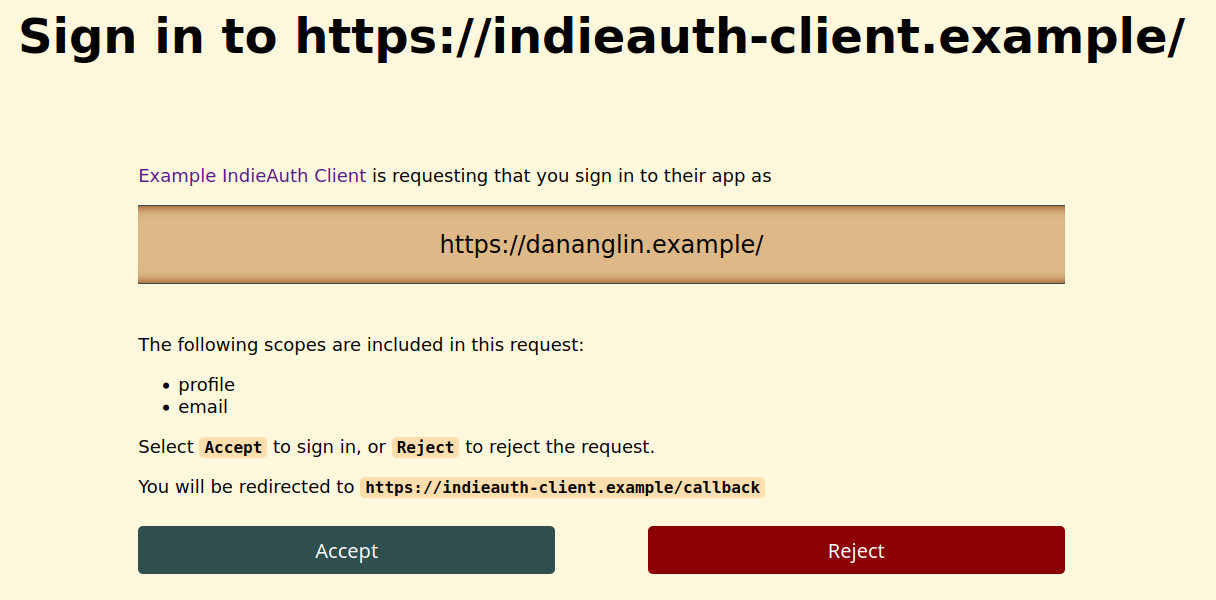
Once you have everything set up, you can sign into an IndieAuth client (e.g. IndieLogin.com) with your own domain or website. The client will ask you to enter your domain and then redirect you to your Beacon instance where you’ll need to sign in and authorize the client to sign you into their service using your domain as your identity.
The client’s authorization request may include additional scopes such as:
profile- This will allow the client to view your display name, profile URL and photo URL.email- This will allow the client to view your email address.
Click Accept to approve the client’s authorization request.