Getting started
In this guide we are going to log into an account on a private GoToSocial server.
Follow along to log into your own account.
Create and edit your configuration file
The configuration for enbas is stored in a JSON formatted file.
The default path to the configuration file is set to $XDG_CONFIG_HOME/enbas/config.json.
If the XDG_CONFIG_HOME environment variable is not set then:
- on Linux the path will be set to
$HOME/.config/enbas/config.json. - on Darwin (MacOS) the path will be set to
$HOME/Library/Application Support/enbas/config.json. - on Windows the path will be set within the
%AppData%directory.
Alternatively you can use the --config top-level flag to specify a custom path to your configuration file.
Run the following command to generate your configuration file.
# Create a new configuration using the default path.
enbas create config
# Or create a new configuration using a custom path.
enbas --config /path/to/your/new/config.json create config
You can use the example configuration to help you edit your own.
You may recall that when installing the application you may have also generated and installed the example
configuration system-wide (at /usr/local/share/doc/enbas/examples/config.json) or locally within your home
directory (at ${HOME}/.local/share/doc/enbas/examples/config.json).
You can also find a copy on Code Flow
or on Codeberg.
For more details about the configuration options see the Configuration reference page.
For this ‘Getting Started’ guide you may want to specify your favourite browser in the configuration so that enbas can open the link to your instance’s authorisation page during the login flow. If you prefer to open the link manually then you can leave this field empty.
Log into your GoToSocial account
enbas uses GoToSocial’s Oauth2 authentication flow to log into your Fediverse account. Follow the below steps to complete the login process.
-
Run the following command to begin the login process. Use the
--urlto specify the URL of the instance that you want to log into. Use the--scopeflag to specify the scope of your access (e.g. read, write). You can use the--scopeflag multiple times to specify multiple scopes.enbas login --url gts.mydomain.example --scope read --scope write -
enbas will send a registration request to your instance and receive a new client ID and secret that it needs for authentication.
-
enbas will then generate a link to the consent form for you to access in your browser and print it to your terminal screen along with a message explaining that you need to obtain the
out-of-bandtoken to continue.The link will open in a tab in your preferred browser if you’ve specified it in your configuration. Alternatively you can manually open it yourself.
If the browser tab doesn’t open for you as expected you can still open the link manually.
-
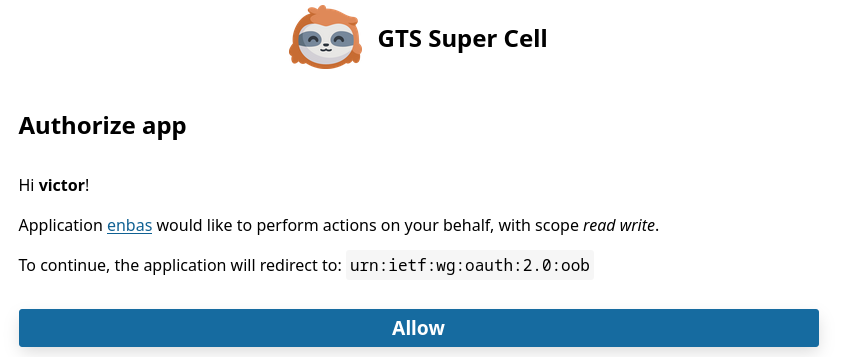
Once you’ve signed into GoToSocial in your browser, you will be informed that enbas would like to perform actions on your behalf with the scopes that you’ve specified earlier. If you’re happy with this then click on the big Allow button.
-
The
out-of-bandtoken from your instance will be displayed to you in your browser. Copy it and return to your terminal. -
Paste the token into the prompt and press
ENTER. enbas will then exchange the token for an access token which will be used to authenticate to your instance on your behalf. -
Finally, enbas will then verify the access token, save the credentials to the credentials file at the path specified in your configuration file, and inform you that you have successfully logged into your account.
Example login flow
$ enbas login --url super-cell.gts.enbas.private --scope read --scope write

You'll need to sign into your GoToSocial's consent page in order to generate the out-of-band token to continue with the application's login process.
Your browser may have opened the link to the consent page already. If not, please copy and paste the link below to your browser:

https://super-cell.gts.enbas.private/oauth/authorize?client_id=01C5TAJ1GC1HFH45BV3BNRSZ1M&redirect_uri=urn%3Aietf%3Awg%3Aoauth%3A2.0%3Aoob&response_type=code&scope=read+write

Once you have the code, please copy and paste it below.
Out-of-band token: NJVMZGMWZMUTNJDKZI0ZZJNLLWI3NDATYTNJYWE0MJBLOGI5
✔ You have successfully logged in as victor@super-cell.gts.enbas.private.
View your account information
You can verify that you have successfully logged in by viewing your account information by running enbas show account --my-account.
$ enbas show account --my-account

Victor (@victor)

ACCOUNT ID:
01XWASN1G5K23ZBYCZHR4KQS3C

JOINED ON:
24 Apr 2025

STATS:
Followers: 0
Following: 0
Statuses: 0

BIOGRAPHY:
Hey there, the name's Victor.

I've been a Platform Engineer in the Healthcare industry for 7 years and
counting. I love containerising anything and everything with #docker and #k8s,
and often find myself dabbling with #python, #golang and #rust.

In my free time I like to cook, blog about FOSS software news and make videos
documenting my travels across the UK.

METADATA:
Pronouns: he/him
Location: Hertfordshire, UK
Website: https://victor.me.private
Blogs: https://blogs.victor.me.private
Photos: https://photos.victor.me.private
Streams: https://streams.victor.me.private

ACCOUNT URL:
https://super-cell.gts.enbas.private/@victor

YOUR PREFERENCES:
Default post language: en
Default post visibility: public
Mark posts as sensitive by default: false